
Bonsai installation
Bonsai is an extension to the popular free and open-source 3D authoring package Blender. Bonsai and Blender both work on Linux, macOS, and Windows.
Installation
- Install Blender. If you don’t have administrator rights on Windows, you can download a portable ZIP instead.
- Download Bonsai. You do not need to unzip the file you download.
- Launch Blender, and access the
Edit -> Preferenceswindow. - Select the
Add-onstab, and pressInstall…on the top right. - Navigate to Bonsai
.zipfile, and pressInstall Add-on. - You should now see
Import-Export: Bonsaiavailable in your add-ons list. Enable the add-on by pressing the checkbox beside it.
All done! If you check your Scene properties panel on the bottom right of the Blender interface, you will see a panel related to Building Information Modeling.
Upgrading
Download the latest version of Bonsai from the website, and uninstall any current Bonsai before installing the latest version.
If you are upgrading to a new version of Blender, just install Bonsai as if it were a fresh installation.
Uninstallation
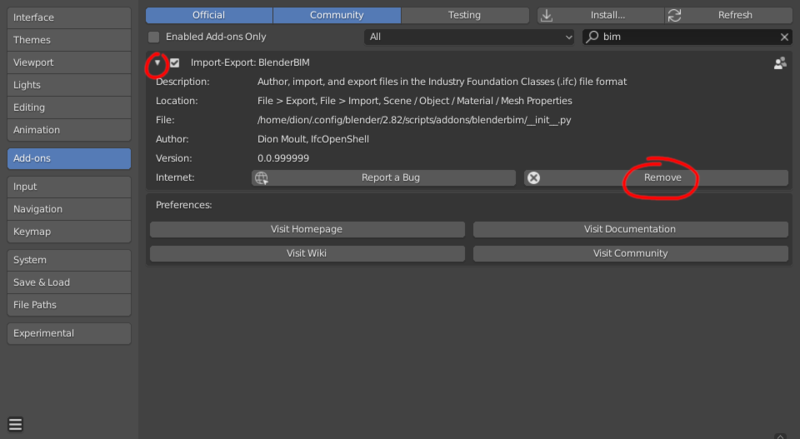
Find Bonsai entry in the Edit > Preferences > Add-ons window, and press the Remove button.
Known issues
- Ubuntu Blender package 2.82.a+dfsg-1 for Ubuntu 20.04 seems to package Blender without
numpy. You are required to installnumpyseparately. - Clash detection relies on
fcl, which is not currently available nor packaged for Mac. You are required to install it yourself. If you do, let us know, so we can share it with others. - There is a conflict with LuxCoreRender 2.4 for Linux. As temporary workarround copy /home/xxx/.config/blender/2.8x/scripts/addons/BlendLuxCore/bin/libtbb.so.2 to /home/xxx/.config/blender/2.8x/scripts/addons/bonsai/libs/libtbb.so.2
Using the bleeding-edge version
If you’re a developer, or just really keen, it is possible to run the latest bleeding edge version of Bonsai without having to wait for an official release, since Bonsai is coded in Python and doesn’t require any compilation. First, install the latest official release, and then download the latest source code. If you don’t know how to use the “Git” system, you can manually download the latest code. If you know how to use Git, you can also stay up to date like so:
$ git clone https://github.com/IfcOpenShell/IfcOpenShell.git $ cd IfcOpenShell $ git checkout v0.6.0
Current Bonsai source is located in the src/bonsai/ directory. Follow the official development installation guide for a live development environment or packaged build. The location of the Blender extension folder depends on how Blender was installed.
/path/to/blender/2.83/scripts/addons/
Otherwise, if you installed Blender using an installation package, the add-ons folder depends on which operating system you use. On Linux:
~/.config/blender/2.83/scripts/addons/
On Mac:
/Users/{YOUR_USER}/Library/Application Support/Blender/2.83/
On Windows:
C:\Users{YOUR_USER}\AppData\Roaming\Blender Foundation\2.83\scripts\addons
Restart Blender for the changes to take effect. In Edit > Preferences > Add-ons you will see that the version number of Bonsai has changed to 0.0.999999, which represents an un-versioned Bonsai.
Although Bonsai itself is pure Python, it does have quite a few dependencies. These are installed in the libs/ folder of Bonsai. On rare occasions, it is possible that one of these dependencies have been updated to a later version. In this case, simply replacing Bonsai files will not be sufficient, and you may experience and error in enabling the add-on or running particular features.
If you are a developer, you can watch for changes in the Makefile, and run the appropriate command to build your own add-on version depending on your platform:
$ make dist PLATFORM=linux $ make dist PLATFORM=macos $ make dist PLATFORM=win
If you are not a developer, it is advised to wait for the next official release. Whenever a release comes out, it is advised to also uninstall Bonsai, and install the official release, before returning to the bleeding-edge version.